

What is PaxViewer?
PaxViewer is a browser-based DICOM viewer distributed as a macOS application.
The macOS app includes a built-in local server, allowing users to view and manage DICOM studies through a web browser.
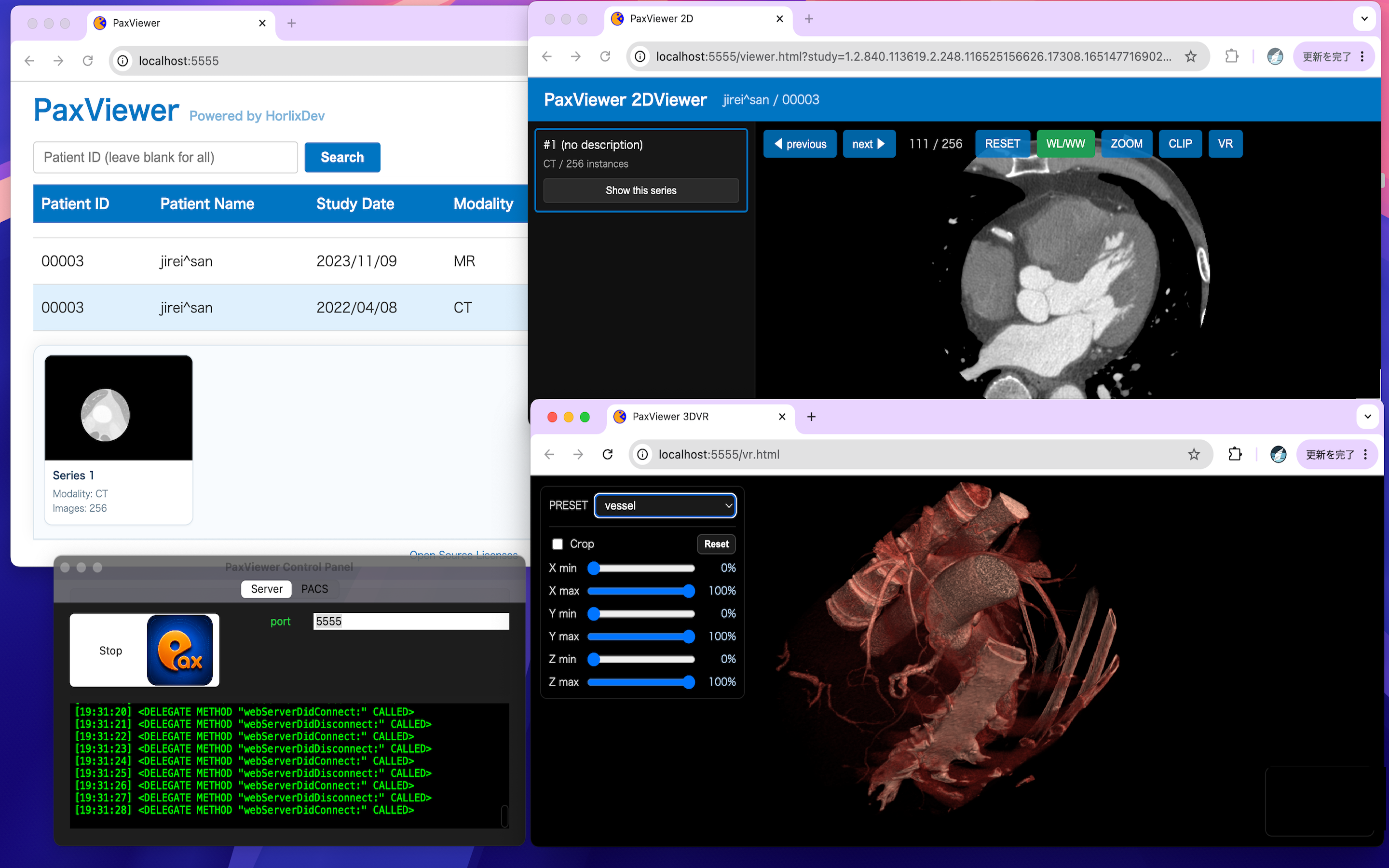
The app runs on macOS 12.4 or later. Other devices on the same LAN, including Windows PCs, can access the viewer through a supported web browser, depending on the user’s network configuration.
Main Features
– Built-in local server
– PACS-style study list
– Import and manage DICOM studies
– 2D DICOM viewer
– WL/WW adjustment
– Basic 3D volume rendering
– Browser-based access over a LAN
How To Use
Fierst, double-click the app icon to open the Control Panel.
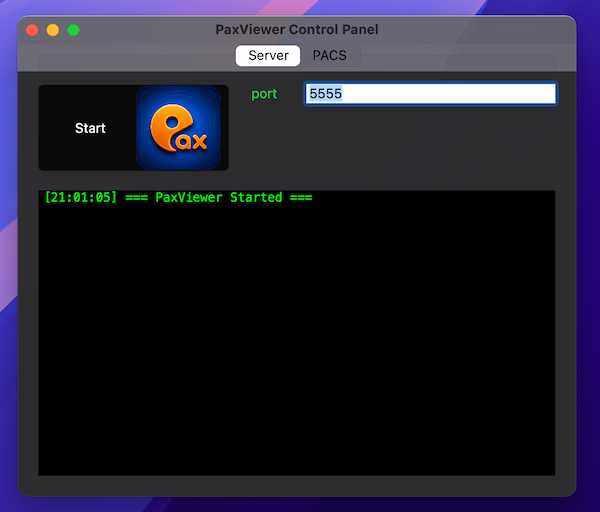
Pressing the Start button will start the server, and your default browser will open the page at
http://localhost:5555
This will display a list of studies managed by PaxViewer.

The study list page will be displayed in the browser. Initially, there is only one DICOM study. If no suitable study is available, please import DICOM image files using the upload function.
Importing DICOM Files
Here is a sample study.
Please download and unzip it.
NOTICE! Currently, PaxViewer cannot read zip files directly. So please unzip it before importing.
PaxViewer does not currently support DICOMDIR import.
To import a study, please select the actual DICOM image files, not the DICOMDIR file itself.
If your DICOM data is stored in a folder, open the folder and select all DICOM files inside it (See below). You can select multiple files at once and import them together.

Press Upload button.

PaxViewer read all of files and save them into the own storage.
2D Viewer
Double-clicking on a specific row (study) in the list will open the 2D Viewer.

Basic functions such as WL/WW are already implemented.

Left-drag horizontally to adjust the window width (WW).
Left-drag vertically to adjust the window level (WL).
3D Viewer
Clicking the VR button will open the 3D Viewer.
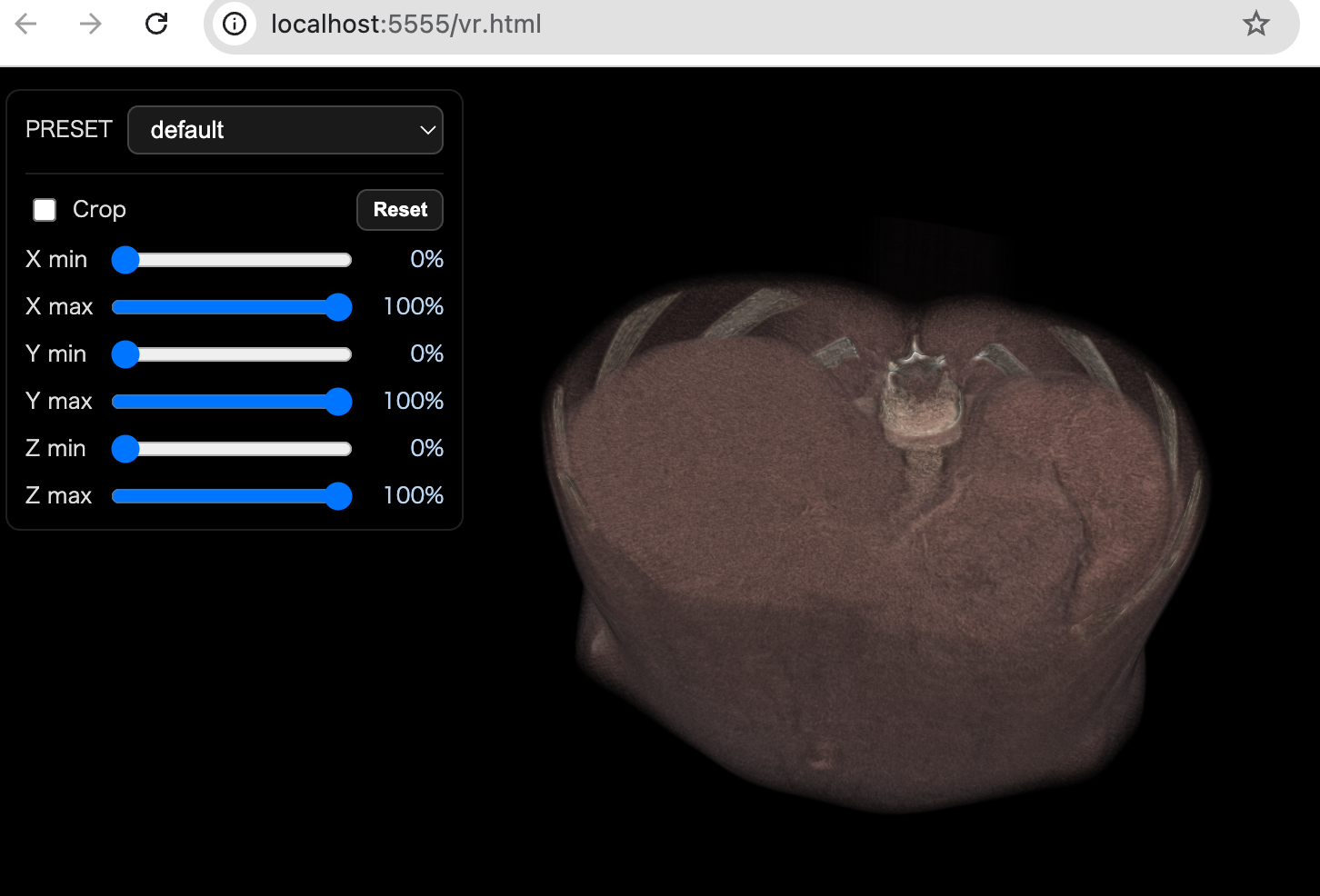
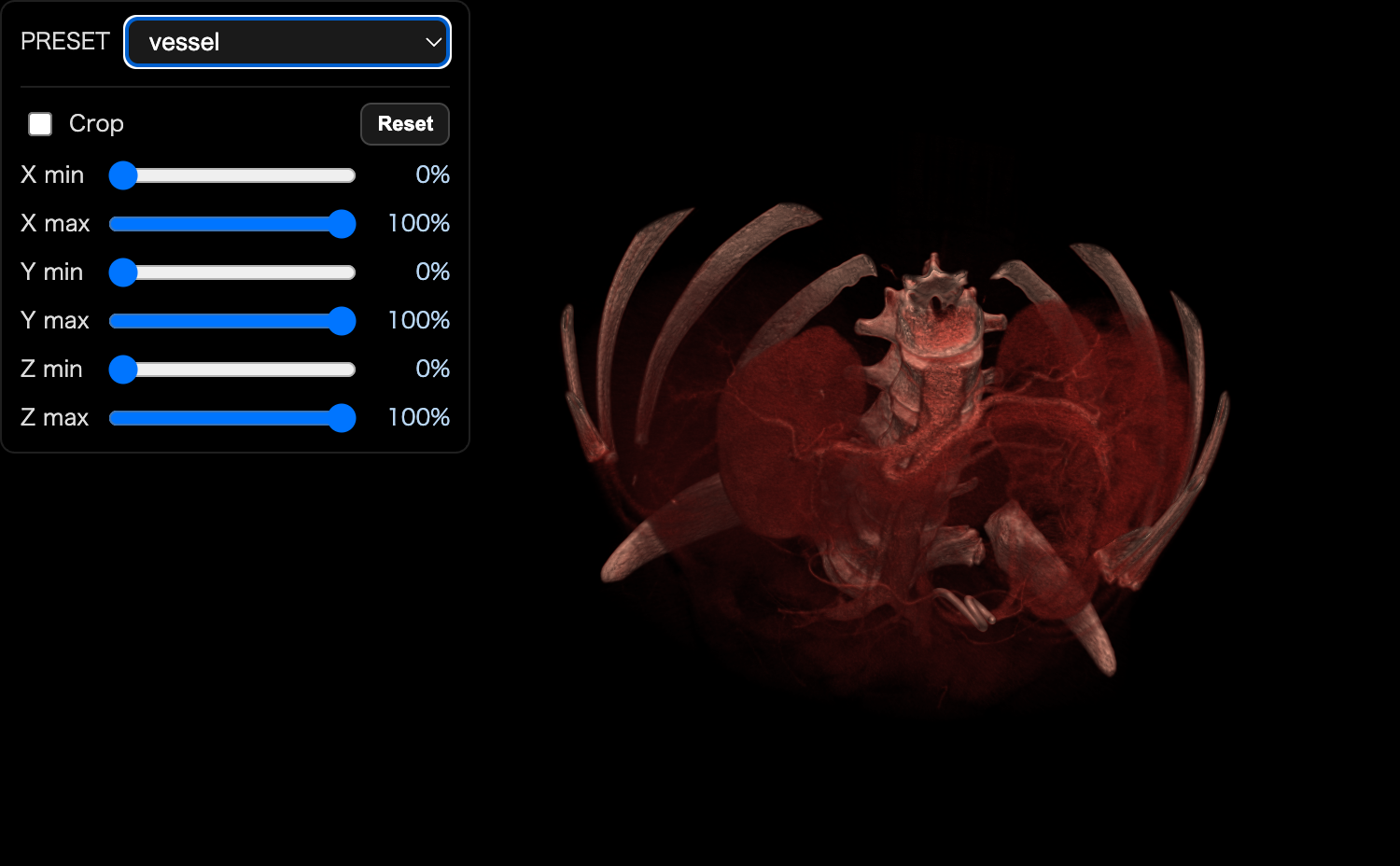
Select the “vessel” preset to emphasize blood vessels in the 3D volume rendering.
Built-in Server and LAN Access
PaxViewer can also be accessed from other devices on the same LAN.
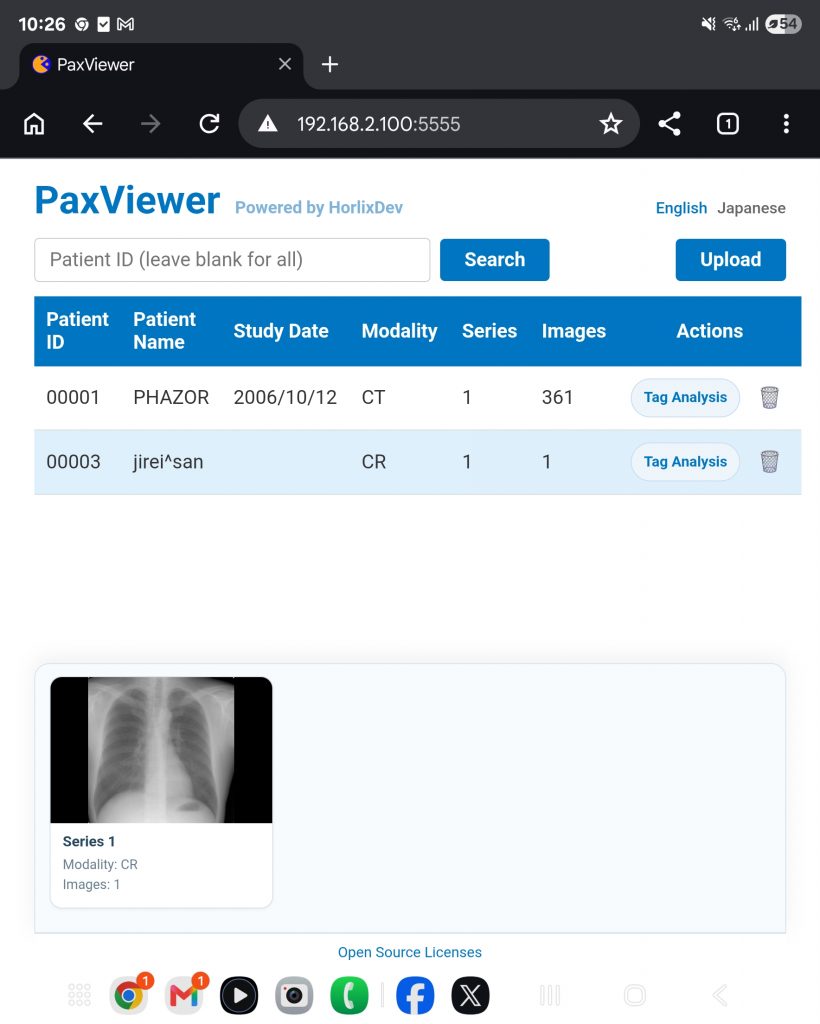
After starting the built-in server on the Mac, open the following URL in a web browser on another device:
http://[Mac IP address]:[port number]
Example:
http://192.168.2.100:5555
This allows Windows PCs, tablets, and smartphones on the same local network to access the browser-based viewer.
Your feedback is welcome
We welcome your feedback, comments, bug reports, and feature requests.
Please visit the PaxViewer Community repository:
https://github.com/Hiroaki-Inomata/PaxViewer-community
Your input helps us improve PaxViewer.
HorliX dev team